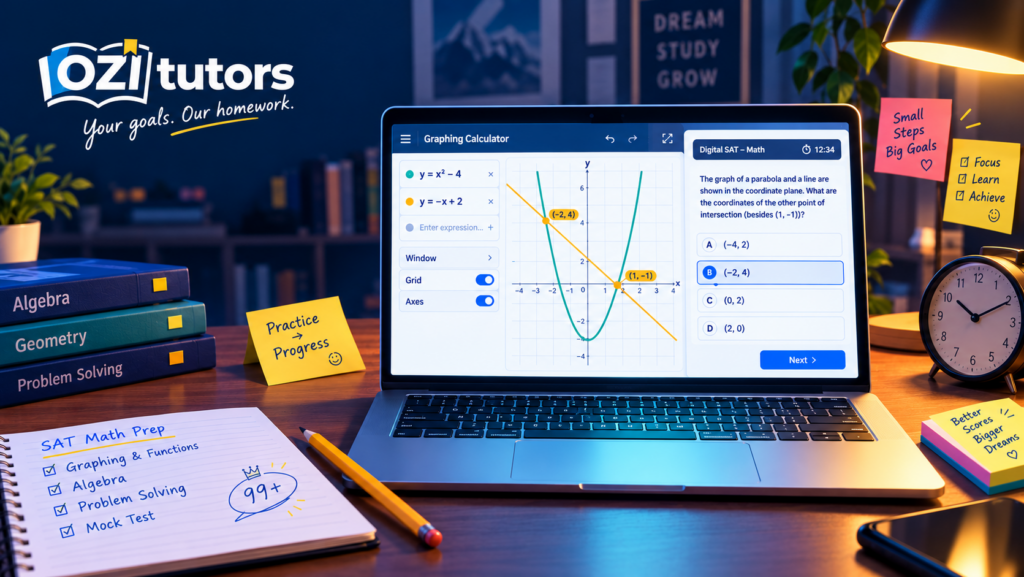
The Digital SAT includes a built-in Desmos graphing calculator that you can use on the whole Math section. It can graph equations, find intersections and solve systems quickly. It is a tool, not a shortcut for everything. Practise with it in the Bluebook app before test day so it saves time instead of costing it.
Desmos on the Digital SAT: How to Use It to Save Time
On the Digital SAT, you do not need to bring a graphing calculator to solve hard Math questions. The test app includes the Desmos graphing calculator, and it is available for the entire Math section. Students who learn to use it well can save real time. Students who do not practise can waste time fumbling with it.
This post shows what Desmos can do, when to use it, and when to put it down.
What is Desmos on the SAT?
Desmos is a free online graphing calculator. In the SAT’s Bluebook testing app, a version of it is built in. You open it during the Math section and use it to graph, calculate and check your work. You can also use your own approved calculator if you prefer. Check the College Board’s calculator policy for the list of allowed devices.
Why practise before test day?
Because it works differently from a handheld calculator. You type expressions in lines, and the graph updates on the screen. If you have never used it, the first time should not be during the real test.
The Bluebook app has full practice tests that include the same calculator. Use them so that the tool becomes familiar.
Five things Desmos does well
1. Solves systems of equations by graphing. Type both equations on separate lines. The point where the lines meet is the solution. Tap the point to see the coordinates. This is often faster than solving by hand.
2. Finds where a function equals a value. If a question asks when a function reaches a certain value, graph the function and a horizontal line at that value. The intersection gives the answer.
3. Finds the vertex, zeros and intercepts of a quadratic. Graph the equation and tap the key points. Desmos marks them for you.
4. Checks your answer choices. If the options are numbers, type each into the equation and see which one works. This is a good backup when you are stuck.
5. Handles awkward arithmetic. Long decimals, powers and roots can all be typed in as they appear.
https://www.ozitutors.com/courses/sat/sat-prep#explore-courses
Using sliders for questions with unknowns
If a question has an unknown number, like k, you can type the equation with k in it. Desmos will offer a slider. Move the slider and watch how the graph changes. This helps when a question asks for the value of k that gives a certain number of solutions or a certain shape.
When not to use Desmos
- When the question can be solved in ten seconds by hand. Typing takes time. Do simple arithmetic and simple algebra in your head or on paper.
- When you do not understand the question. A graph will not fix a misread problem.
- When the answer needs an exact form. Graphs give decimals. If the choices are in exact form, convert carefully.
- When you are nervous and want to type everything. This is a common trap. Use it with a purpose.
A quick routine for using it well
- Read the question and decide what is being asked.
- Ask: can I solve this faster by hand? If yes, do so.
- If not, type the equation exactly as given.
- Tap the key point or read the value.
- Check that the answer fits the question, including units and the choices.
Common mistakes
- Typing errors. A missing bracket changes the whole expression. Look at the line before you trust the graph.
- Wrong window. If the graph seems empty, zoom out or use the zoom-to-fit option.
- Using it as a crutch. The strongest students use it for a handful of questions and solve the rest by reasoning.
- Not saving expressions. Keep lines you might need again instead of deleting them.
How to practise this week
- Do one full Math module in Bluebook and use Desmos only where you think it helps.
- Afterwards, go back through the questions you missed. Ask: would Desmos have helped? If yes, redo the question with it.
- Make a list of five question types where Desmos saved you time. Practise those until they feel automatic.
How a tutor can help
A tutor who knows the Digital SAT can show you shortcuts on your own laptop in real time. A live screen-share is one of the best ways to learn Desmos, because you can see where you get stuck. OziTutors SAT tutors can go through this with you in a free demo session.
FAQ
Is Desmos available for the entire SAT Math section? Yes. The built-in calculator is available for both Math modules.
Can I bring my own calculator? Yes, if it is on the College Board’s approved list. Check the policy before test day.
Do I need to know Desmos to get a high score? No, but it can save time on some questions, and students who know it usually feel calmer.Where can I practise? Use the full-length practice tests in the Sat prep.